
Set up ZifChat
with confidence.
From your first WhatsApp number to AI knowledge and human handoff, this is the complete setup reference for ZifChat Free and Pro.
- Install the one ZifChat plugin
- Run the five-step setup wizard
- Customize your chat and team
- Activate a license for Pro
- Connect AI and test handoff
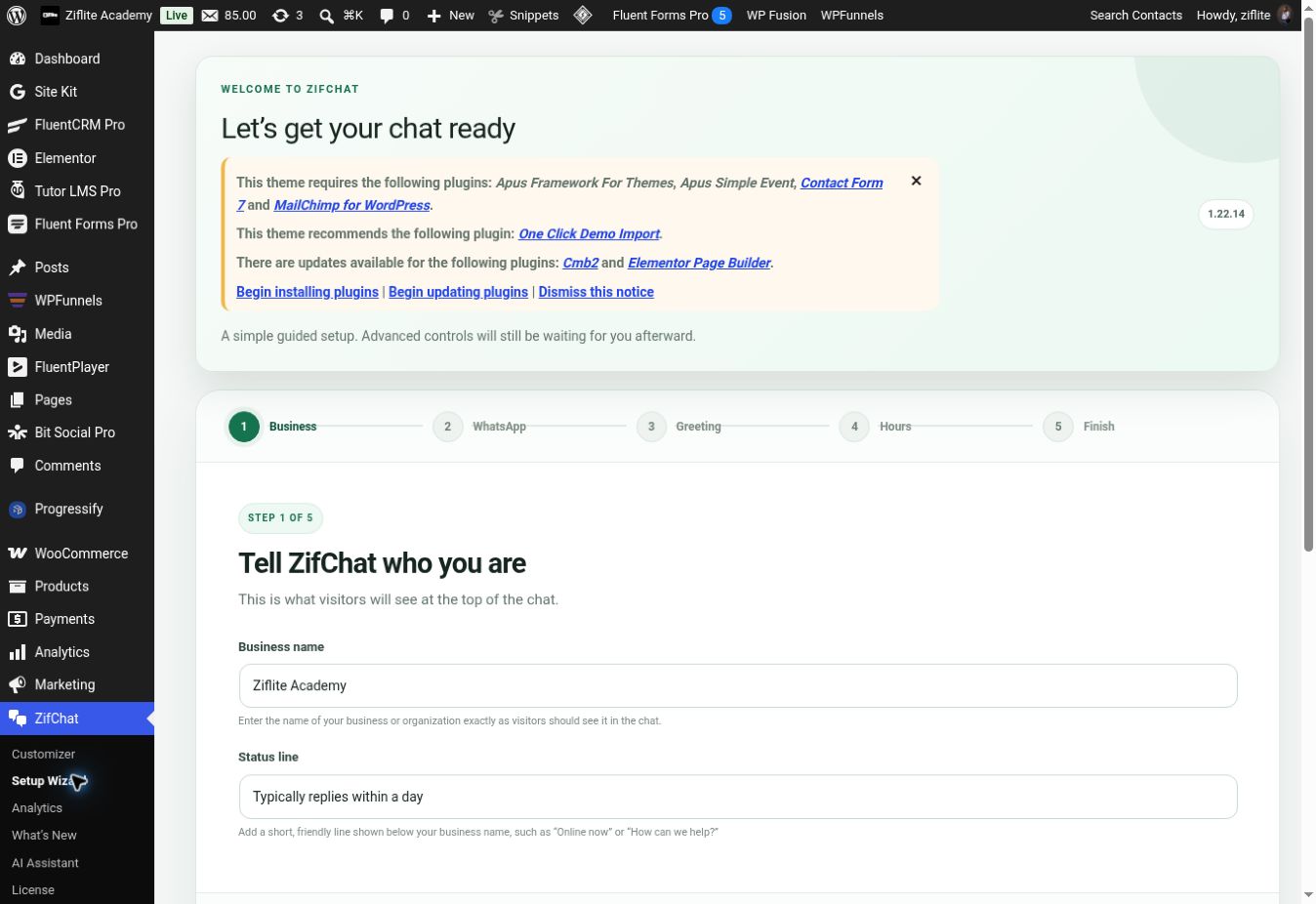
Install once, then follow the wizard.
ZifChat Free and Pro use the same plugin. Start with the Free download; entering a valid Pro license unlocks the premium controls and capabilities already present in it.
What the license unlocks.
Free is a useful WhatsApp chat experience. A valid license enables Pro in the same installation; there is no separate Pro add-on to install and no need to remove the Free plugin.
| Feature | Free | Pro with active license |
|---|---|---|
| Chat launcher, greeting, colors, quick replies, text size | ✓ | ✓ |
| Agents | Up to 2 | Unlimited |
| General hours and basic analytics | ✓ | ✓ |
| Agent-specific hours, advanced context and page rules | — | ✓ |
| Premium launcher icons, advanced visibility and WooCommerce CTA | — | ✓ |
| AI, knowledge entries, website crawler and PDF import | — | ✓ |
| AI/human handoff, advanced analytics and WordPress Abilities/MCP | — | ✓ |
| Remove “Powered by ZifChat” | — | ✓ |
Free users may see a premium control with a Pro label. That control is locked until a license is activated. Settings already saved are preserved if a Pro license is later deactivated.
Make the chat look and sound like your business.
Open ZifChat → Customizer. The right-hand live preview shows branding and launcher choices. The public widget changes after you select Save & publish changes.
Core chat
- Enable ZifChat controls whether the launcher appears.
- Default WhatsApp number is the fallback when nobody selects an agent. Include country code without a plus sign or spaces.
- Business name, status line and greeting are displayed to visitors.
- Widget color, header color and chat text size set the presentation. Text size is available in Free and Pro.
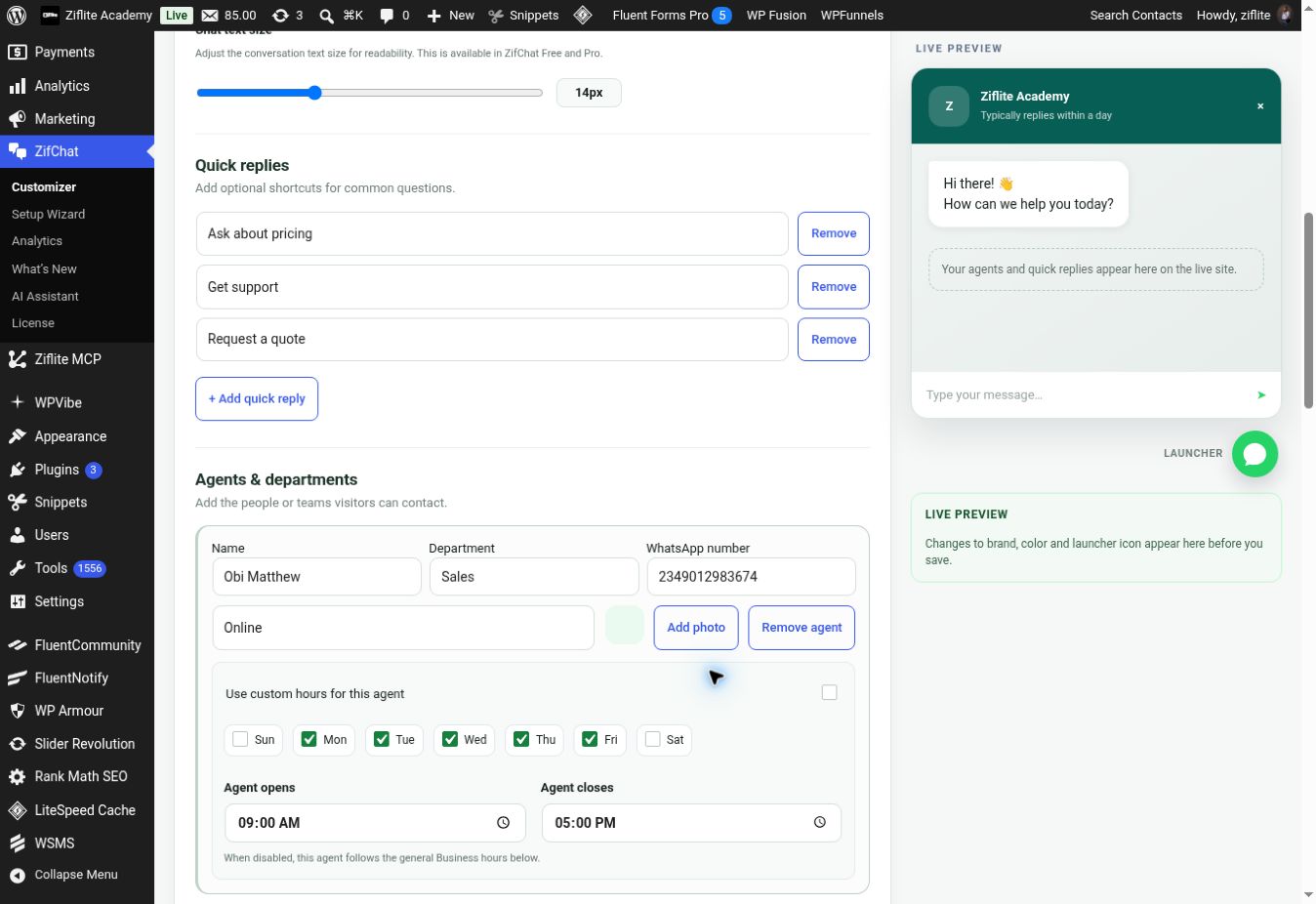
Quick replies
Add short, common prompts such as “Ask about pricing” or “Get support.” Use + Add quick reply and remove entries you no longer need. Save the form after editing.
 1234
1234
Send visitors to the right person.
Under Agents & departments, enter an agent name, department, WhatsApp number and optional photo. Add another with + Add agent. Free supports two; Pro removes that limit. If a visitor selects an agent, ZifChat uses that route. The default number is the fallback.
Availability and hours
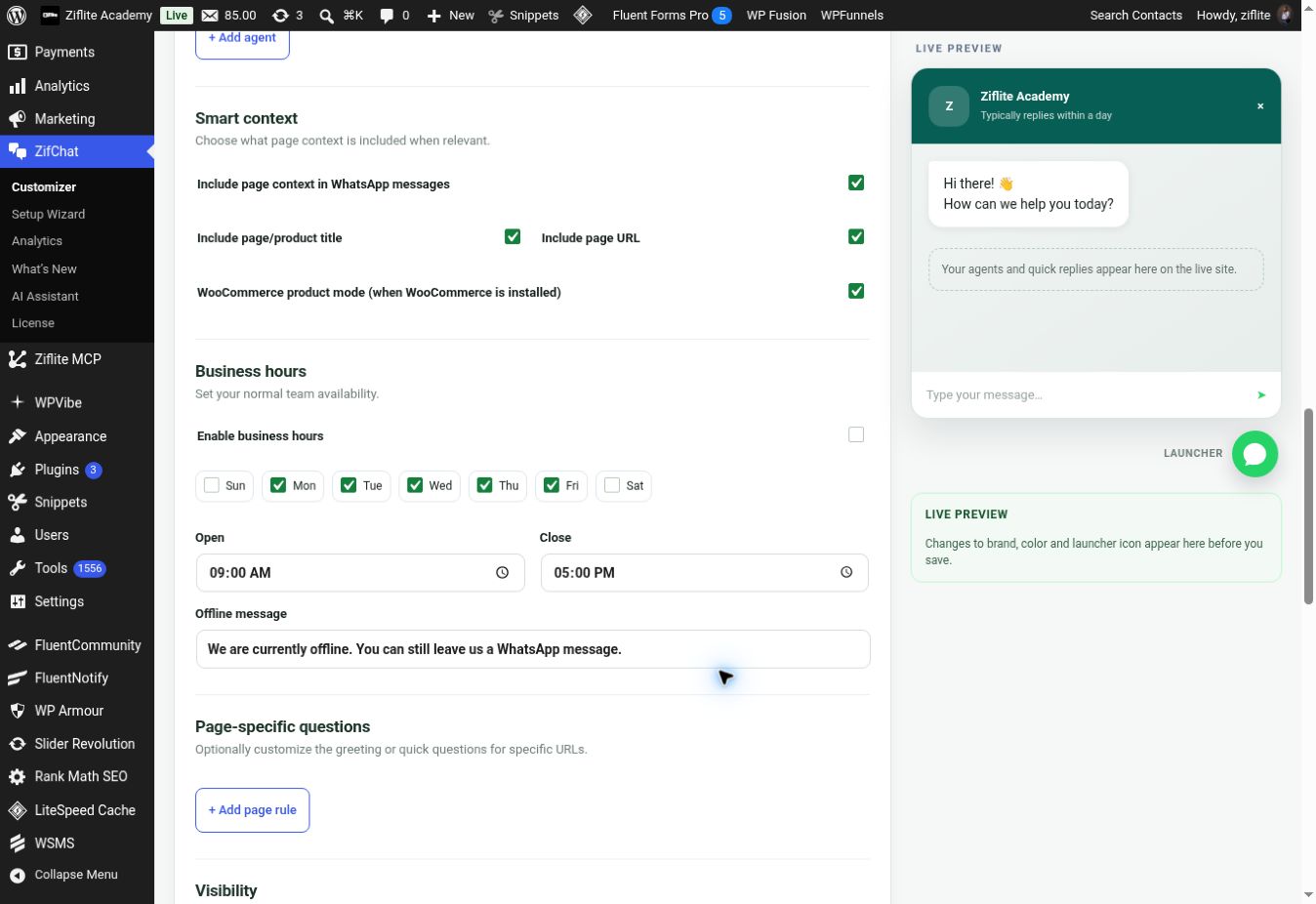
In Business hours, enable the schedule, choose weekdays, opening and closing time, and write an offline message. Agents normally inherit those general hours. In Pro, Use custom hours for this agent lets you choose separate days and times. Verify your WordPress timezone under Settings → General before relying on the schedule.
 1234
1234
Choose where and how the widget appears.
Smart context can include a page/product title and URL in a prepared WhatsApp message. Page-specific questions can tailor the greeting or quick questions for particular URLs. In Visibility, choose desktop/mobile display and list URL fragments to exclude, one per line.
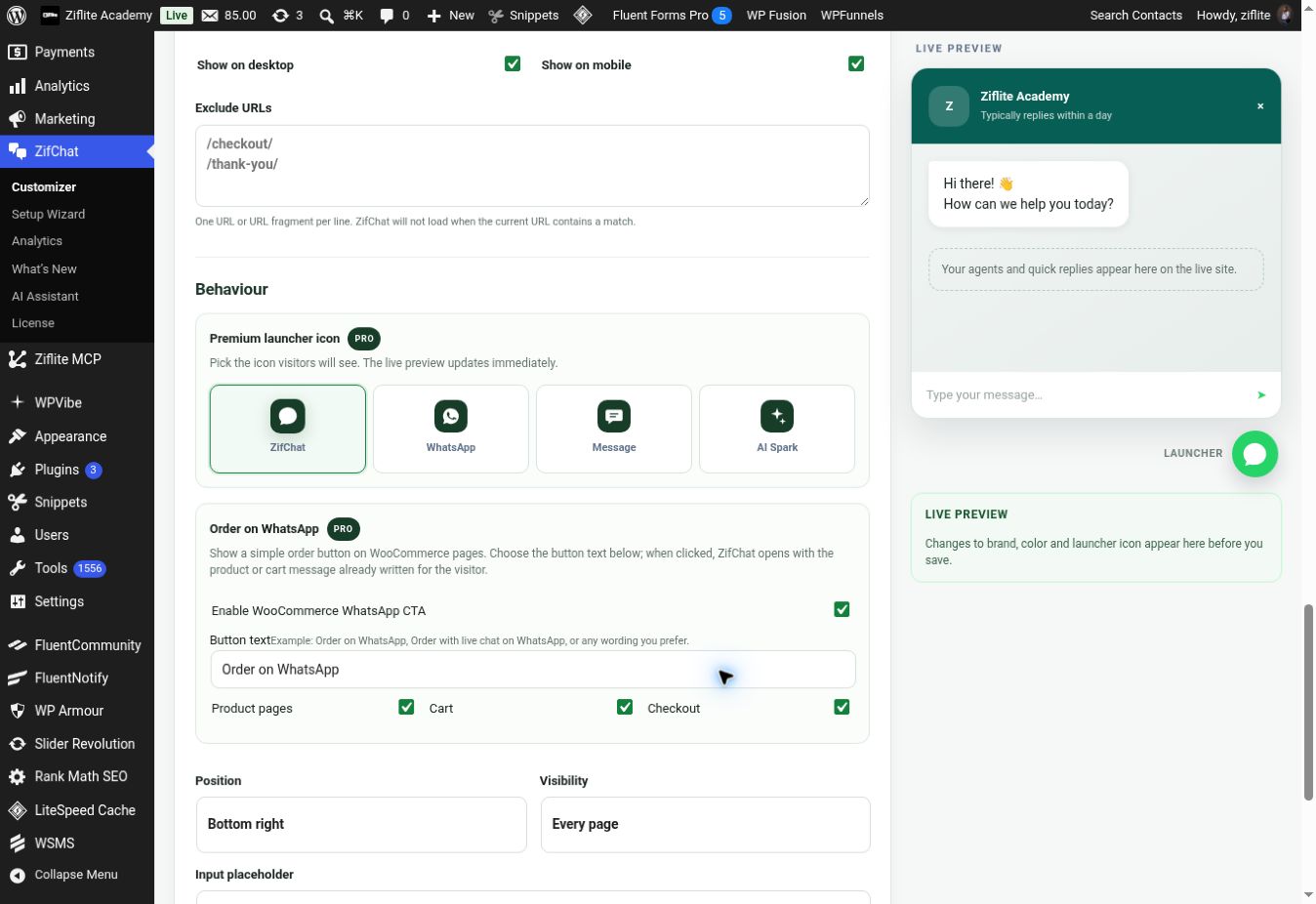
Behaviour provides the launcher icons ZifChat, WhatsApp, Message and AI Spark; bottom-left or bottom-right position; every page or front page only; input placeholder; message prefix; and Pro control over the “Powered by ZifChat” line.
Connect your preferred AI provider.
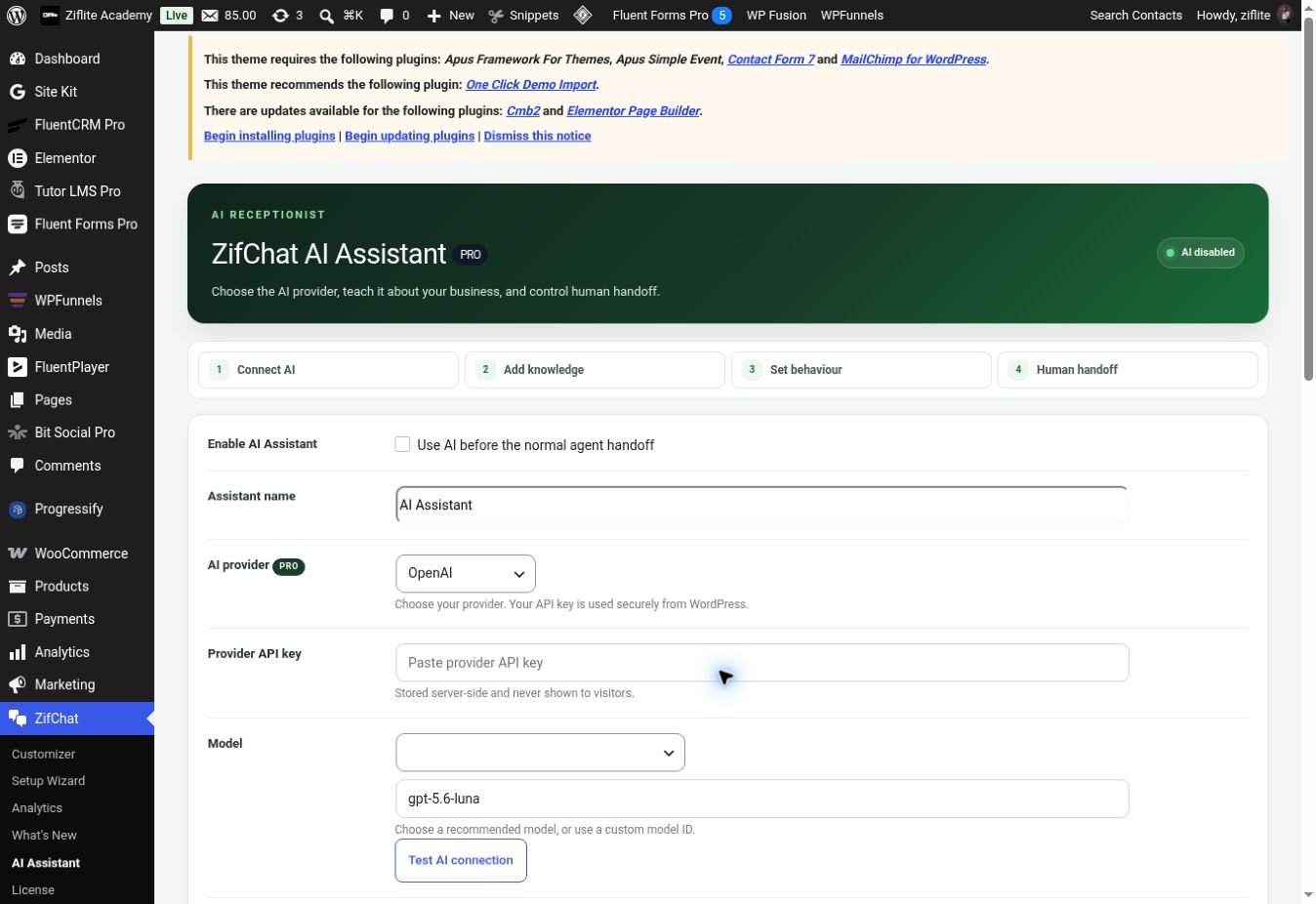
Go to ZifChat → AI Assistant. Turn on Use AI before the normal agent handoff, choose an assistant name, then select a provider. The screen offers OpenAI, Google Gemini, Anthropic Claude, Mistral AI and DeepSeek.
- Create an API key in your chosen provider account and paste it into Provider API key. ZifChat says it stores the key server-side, away from visitors.
- Choose a recommended model or use Custom model ID if your provider supports the exact model identifier. The OpenAI menu currently shows GPT-5.6 Luna, Terra and Sol. Model offerings can change; the dropdown and your provider account are authoritative. A name such as “GPT-6” is not automatically supported just because it can be typed.
- Select Test AI connection, review the result, add knowledge and instructions, then Save AI settings.
- Ask controlled test questions on the public site and check both an answer and a human handoff.
Your AI provider bills API usage separately from the ZifChat license. Never put an API key in a screenshot, knowledge document or support message.
 1234
1234
Teach the assistant your approved facts.
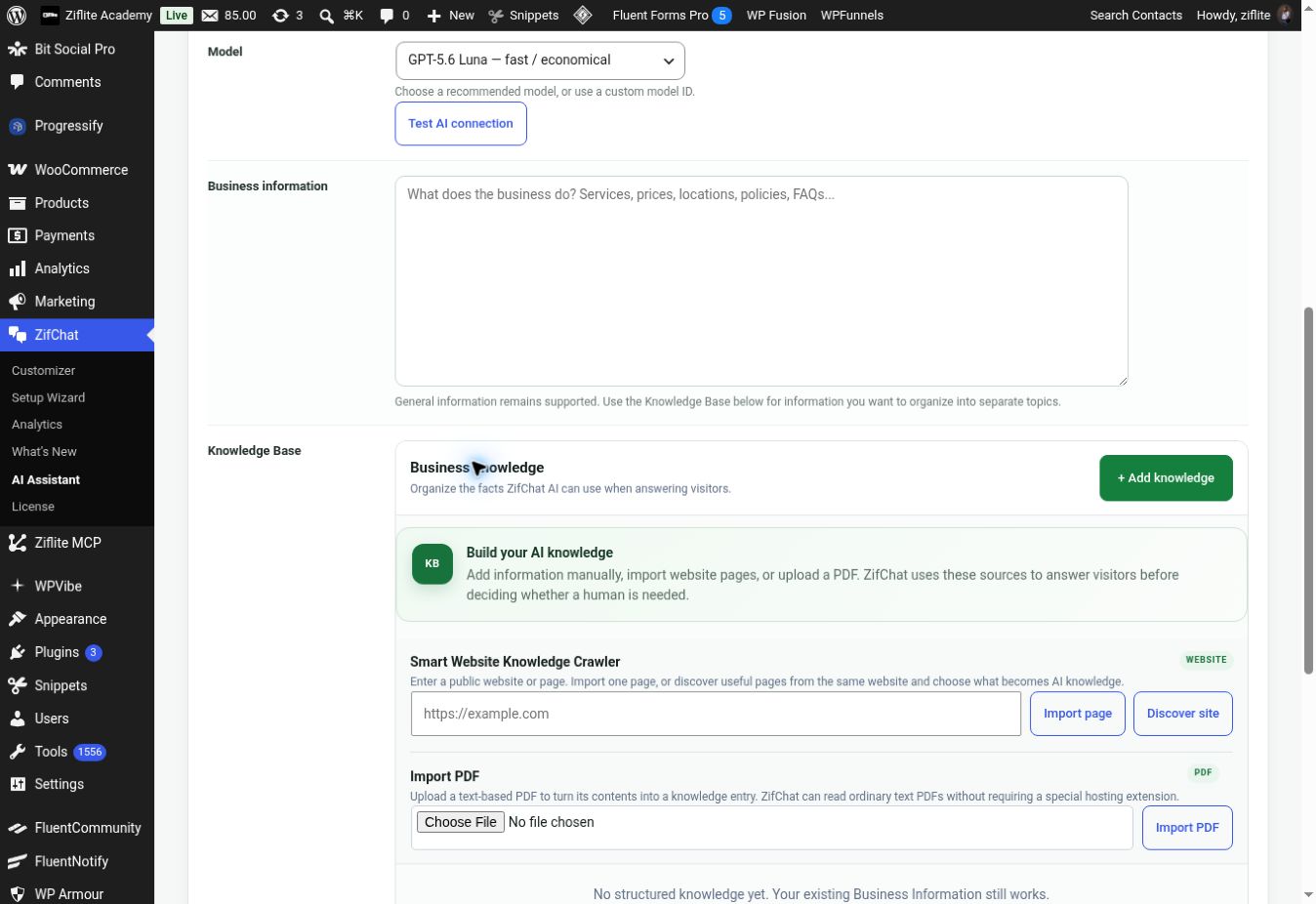
Business information is for a concise general summary. The Knowledge Base organizes facts into individual entries. Use + Add knowledge for manual topics such as services, hours, policies and frequently asked questions.
Keep knowledge current. Remove stale prices, check imported page content, and avoid customer-specific private data. Visitors can always choose Talk to a human; the existing agent availability and WhatsApp routing still determine the destination. The package also describes a conversation summary for handoff.
Start an order conversation on WhatsApp.
When WooCommerce is installed, WooCommerce product mode gives the chat relevant product context. Under Order on WhatsApp, enable the CTA, set its button text, and select Product pages, Cart and/or Checkout. Clicking the CTA opens ZifChat with a product or cart message already prepared for the visitor.
Test each selected surface on your store. The CTA starts a conversation; it is not a payment gateway. Check excluded URLs, routing and product text before relying on it.
Understand what visitors do.
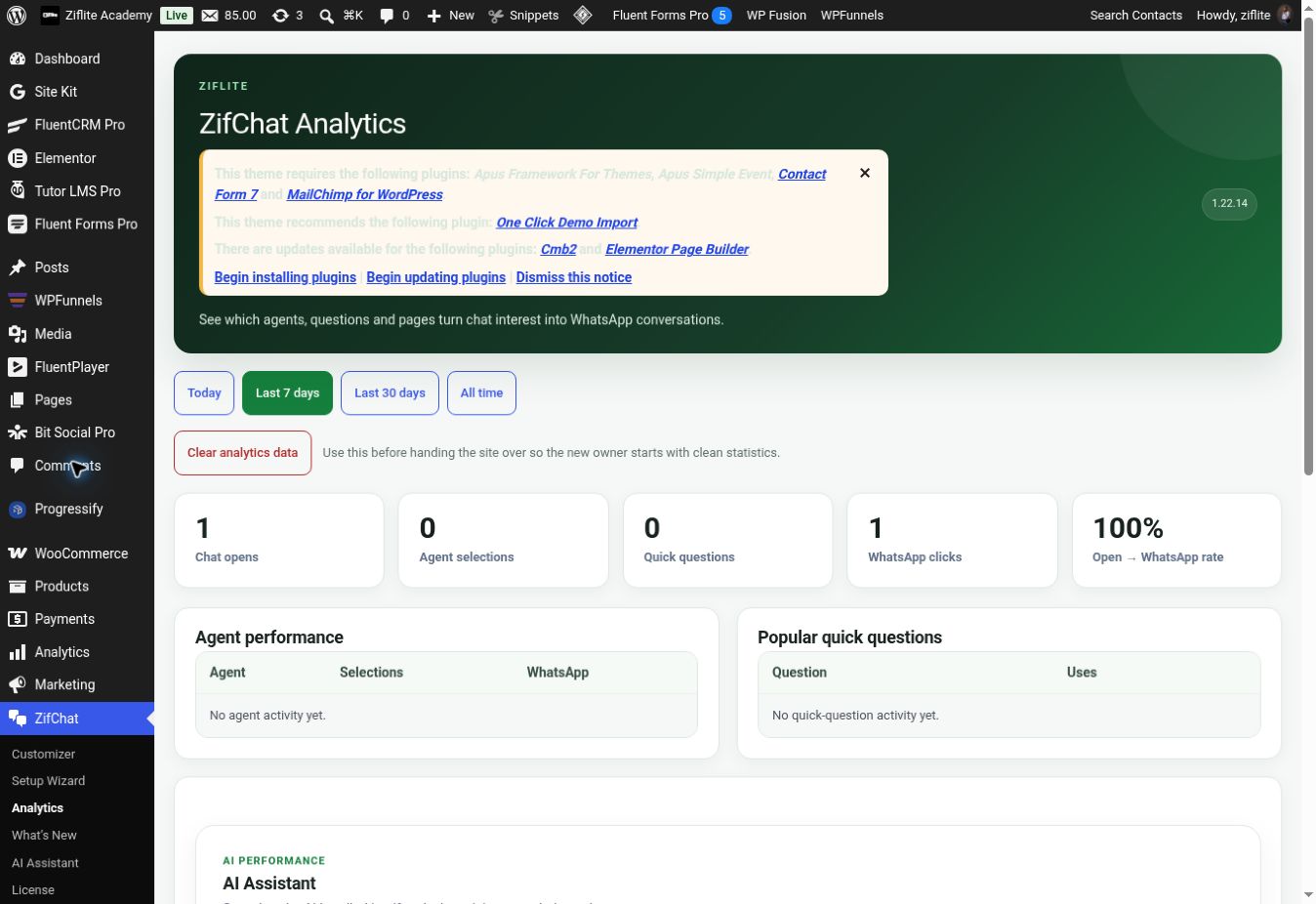
Go to ZifChat → Analytics and filter Today, Last 7 days, Last 30 days or All time. Basic metrics include chat opens, agent selections, quick questions, WhatsApp clicks and open-to-WhatsApp rate. Tables break down agents, questions, pages and daily activity. Pro adds AI conversations, questions, handoffs, live-agent clicks and an Analyze with AI explanation.
Activate Pro and understand updates.
After purchase, go to ZifChat → License, enter your key and activate it on this website. Personal allows one site; Business allows five. Both unlock the same complete feature set. The License screen displays activation status, use, and the updates/support date.
The current commercial terms are lifetime use of the activated plugin with one year of updates and support. When the update/support term ends, an active lifetime installation continues to run; renewal is for continued updates and support. Deactivating on a site releases that activation and locks Pro features while preserving configuration.
Use WordPress’s normal plugin updates when your update entitlement is active. Keep a backup and verify your site after updating.
Common checks before contacting support.
| Problem | What to check |
|---|---|
| Launcher does not appear | Enable ZifChat, device visibility, front-page-only setting, excluded URLs and page cache. |
| Wrong WhatsApp destination | Agent numbers, fallback number and international format. |
| Agent shows at the wrong time | WordPress timezone, general hours and agent-specific Pro schedule. |
| Premium control is locked | License activation and website allowance. |
| AI fails to answer | Provider and model choice, API key, connection test, approved knowledge and AI instructions. |
| PDF knowledge is missing | Selectable text in the PDF and the imported knowledge entry. |
| WooCommerce CTA does not show | WooCommerce, selected surface, CTA switch and excluded URLs. |
| Analytics and actual WhatsApp chats differ | Clicks are tracked in ZifChat; the final send occurs separately in WhatsApp. |
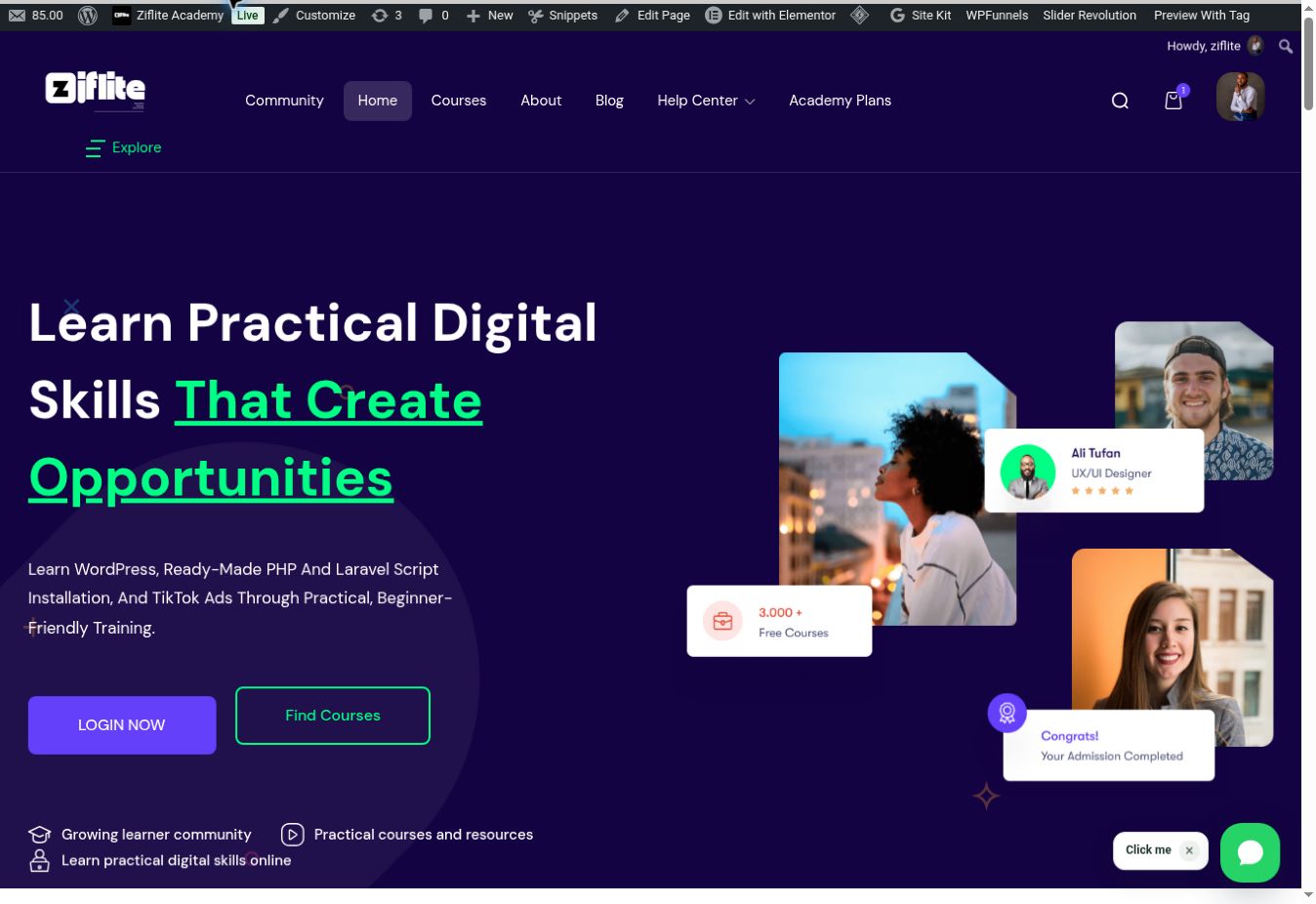
Visitor view
Can visitors still talk to a human when AI is on?
Yes. The AI screen says Talk to a human remains available; agent schedules and WhatsApp routing apply.
Does the setup wizard replace the Customizer?
No. Use the wizard for the first pass and the Customizer for detailed controls.
Are all Pro models included in the license?
The license unlocks provider integration. Your AI provider account controls model access and bills API usage separately.